Smart Home Components: The Five Building Blocks and How a Smart Home Works
In a KNX house, you press the light switch in the hallway, and a relay clicks in the distribution box in the basement. Only then does the light turn on. The switch itself hasn't switched anything.
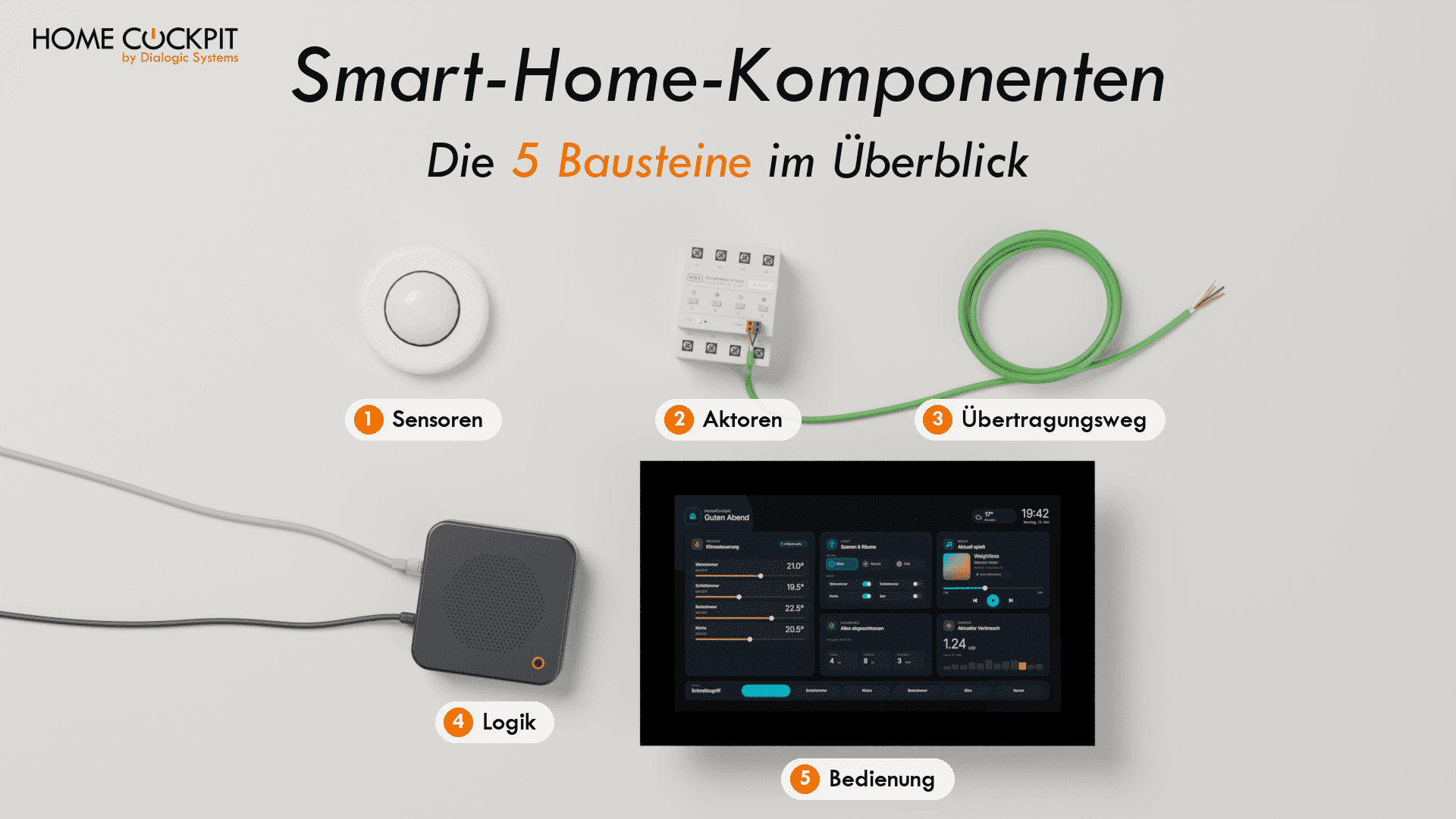
Everything that makes up a smart home happens on the path between these two points. If you are planning a house or want to retrofit one, when it comes to smart home components, you mainly hear product names: KNX, Hue, Home Assistant, FRITZ!Box. Which part takes on which task usually remains unclear. Here, we categorize the components by their role. Afterwards, you will know which five tasks need to be accomplished in a smart home and which devices your house needs for them.
Summary
- A smart home consists of five building blocks: sensors capture, logic decides, actuators switch, a transmission path connects all three. On top sits the operation.
- Technically, the light switch is a sensor. It reports a button press, and the actuator switches the light.
- Every smart home needs logic, but not every smart home needs a central hub. With KNX, the logic can reside within the devices themselves. A server still makes sense in most houses because it handles automations, the app, and third-party devices.
- A bridge translates between two protocols, a server makes decisions. In retail, both are often called a "hub" or "central unit".
- A touch panel is for operation, not a central unit. Automations with conditions belong on a server in the building automation system.
How does a smart home work?
A smart home operates in three steps.
- Sensors capture what is happening in the house: such as the room temperature or a button press.
- Logic decides what follows.
- Actuators implement it: they switch the light, lower the blinds, or regulate the heating.
All three are connected via a transmission path, by cable or wireless.
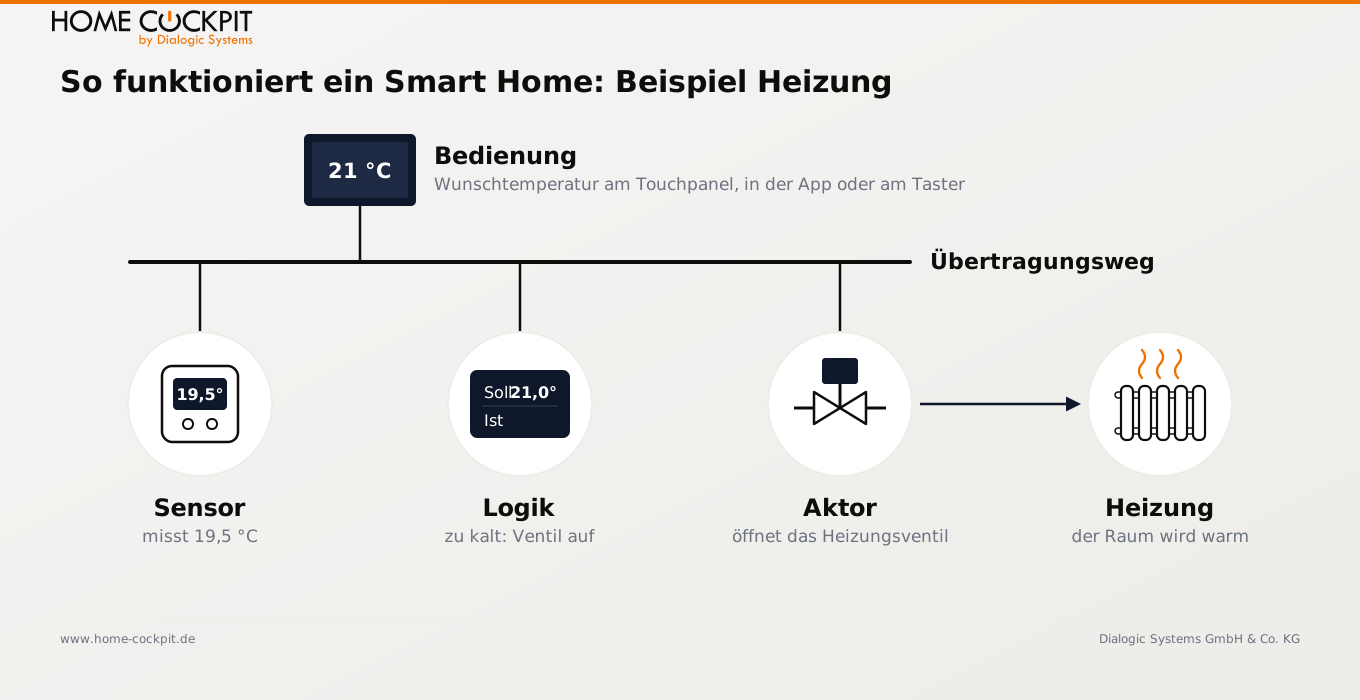
One example is the heating system. The target temperature is set to 21 °C, and the sensor measures 19.5 °C. The logic recognizes that it is too cold and sends a command to the actuator to open the heating valve. Afterward, the sensor continues to measure. Once 21 °C is reached, the logic sends a command to the actuator to close the valve again. This is how the house maintains the temperature without anyone needing to intervene.
Overlaying this process is the control interface. Using a push-button, app, or touch panel, you can see what is happening in the house and intervene if the automation is not doing what you currently want. The control interface also relies on the same transmission path as the other devices.
For planning purposes, two of these are particularly consequential. The transmission path determines whether you need to run cables. The control interface determines how you interact with the house on a daily basis.
Sensors: what the smart home perceives
A sensor measures something and passes the value along. It does not switch anything on its own. Which sensors a house needs depends on what is supposed to happen automatically. The table shows common examples.
Sensor | What it detects | What it is typically used for |
|---|---|---|
Room temperature sensor or controller | Temperature, plus your desired value | Controlling heating and cooling per room |
Motion detector | Motion | Hallway lighting, outdoor lighting |
Window contact | open or closed | heating off when window is open, alarm system |
brightness sensor | light intensity | shading, consistent brightness in the room |
weather station | wind, rain, sun, outdoor temperature | retracting awning in windy conditions, shading based on sun position |
smoke detector | smoke | alarm throughout the house, lighting along escape routes |
water detector | water on the floor | leak warning, automatically closing the main valve |
meter | Electricity, water, photovoltaic system yield | Make consumption visible, use excess energy |
Sensors also receive information. A room temperature controller on the wall reports the measured temperature and the value you set. At the same time, it shows whether the heating is currently active or if a window in the room is open. It receives this information from other devices. With KNX, it often also performs the control itself, making it both a sensor and logic unit. It is not an actuator because it does not switch anything itself.
Actuators: what does the switching in the smart home
An actuator converts a command into electricity or movement. Inside, it usually contains a relay, a dimmer, or a motor controller. Typical actuators in the smart home:
- Switching actuator: switches lights, sockets, or pumps on and off
- Dimming actuator: controls the brightness of lights
- Blind or shutter actuator: moves the blinds and adjusts the slats
- Heating actuator with actuator drive: opens and closes the valve of a heating circuit
- Smart plug: a plug-in switching actuator
- Actuator control: for motorized locks, garage doors, or window actuators
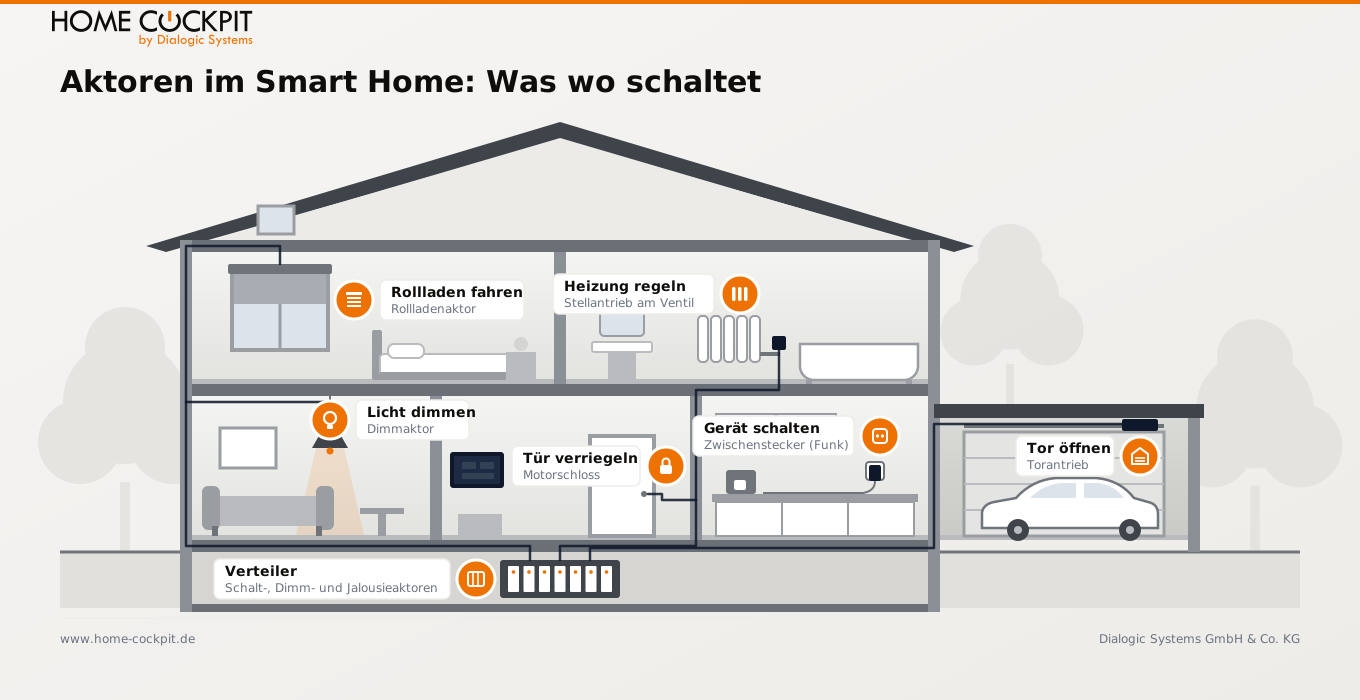
Where an actuator is located depends on the system. With KNX, most actuators are DIN rail-mounted devices located in the distribution cabinet, from which cables lead to lights and motors. With wireless systems, the actuator is often built directly into the end device itself. A Hue lamp, for example, is a wireless receiver, actuator, and light source all in one.
Difference between actuators and sensors
A sensor detects something and reports it, such as the temperature or whether a window is open. An actuator executes a command and actively switches something, such as the lights or blinds. Sensors are located in the room where the measurement takes place.
As a quick test, ask whether the device itself switches or moves something. If so, it is an actuator. If it only reports or displays something, it is a sensor. Some devices contain both in the same housing. For planning purposes, each function is counted individually.
According to this rule, the smart home light switch is also a sensor. It only reports the button press, while the actuator in the distribution box switches the light. Manufacturers like Gira or Jung therefore refer to their KNX push buttons as push-button sensors.
Transmission medium: cables, wireless, and the language in between
For sensors, logic, and actuators to communicate with each other, two things are needed. The medium is the physical path, i.e., a cable or radio frequency. The protocol is the language in which the devices communicate along this path. KNX, for example, is a protocol that can run over a dedicated bus cable, via radio, or over the network.
Medium | Protocols (Examples) | Typical application |
|---|---|---|
Bus cable | KNX TP, Loxone Tree, Homematic IP Wired | New construction and renovation with open walls |
Network cable (Ethernet) | KNX IP, Modbus TCP, MQTT | Connection between systems, servers, and touch panels |
Serial line | Modbus RTU | Heat pump, inverter, meter |
Wireless 868 MHz | KNX RF, Z-Wave, Homematic IP | Additions and retrofitting |
Wireless 2.4 GHz | Zigbee, Thread, mostly also Wi-Fi | Retrofitting, lights, smart plugs |
The KNX bus cable transmits 9,600 bits per second. This is sufficient for switching commands and measured values. Camera images, music, and the intercom system therefore run via the network.
The name Matter is frequently mentioned in this context. Zigbee brings its own wireless network and its own language. Matter is just the language. Apple, Google, Amazon, and many device manufacturers defined it together so that devices from different brands can run in the same app or central control unit without a manufacturer-specific bridge. A central unit is therefore still required. Matter is transmitted over existing networks: Wi-Fi, Ethernet, or Thread. Thread is a low-power wireless network, similar to Zigbee, and is connected to the home network via a so-called border router.
Wired or wireless?
Wired | Wireless | |
|---|---|---|
Reliability | no dead zones, no interference from other networks | dependent on range, walls, and ceilings |
Power supply | via bus or mains | many sensors with batteries that need to be replaced |
Security | access only via the cable, secure bus lines in outdoor areas | receivable from the outside, encrypted with current standards |
Effort | Wiring in new builds or during open-wall renovations | retrofittable without channelling walls |
In new builds, we recommend cables, mostly using KNX. Anything added later or that cannot be wired is supplemented via radio, ideally using the same standard. KNX RF is more expensive than common wireless systems, but in return, the electrician programs everything in the same software, the ETS, and does not need to maintain a second standard. When retrofitting existing buildings, Zigbee is often the more practical choice.
Logic: where the smart home decides
Too cold, so open the valve. This decision has to be made somewhere in every smart home. Therefore, every system requires some form of logic. However, where it resides varies. It can be embedded within the devices themselves or run on a dedicated computer, the server.
Does every smart home need a central unit?
Not necessarily. With KNX, the logic is built into the devices. During commissioning, the electrician defines in the software which push-button addresses which actuator. When you press the button, it sends a telegram—a short message such as "hallway light on"—onto the bus. The actuator recognizes that the message is meant for it and switches.
Heating is also often regulated in KNX systems without a server. The room temperature controller on the wall measures the temperature, compares it with the target value, and sends the valve position directly to the heating actuator. Sensor and logic are located in the same device here.
A KNX system can operate without a server if its primary tasks are switching, dimming, operating blinds, and heating, each via push-buttons or time-controlled via a KNX time switch. In most houses, a server is still useful. It handles automations with conditions, app access, visualization (i.e., an interface that displays all systems together), and devices that do not speak KNX.
Other systems are centrally structured. With Loxone, the logic runs in the Miniserver; with Home Assistant, on the computer where the software is installed. This keeps programming clear because everything is in one place. If the server goes down, however, all functions running through it also stop.
In new builds, therefore, both are often combined. Lighting, blinds, and heating run directly via KNX. A server like Home Assistant sits on top, handles the automations, and integrates devices from other manufacturers. If the server fails, the push-buttons, lights, and heating continue to work.
Bridge or server: translate or decide
Retailers use "central unit", "gateway", "bridge", "hub" and "server" almost interchangeably. Behind them lie two different tasks: translating and deciding.
Task | Device | What it does | Examples |
|---|---|---|---|
translate | Bridge or gateway | forwards messages from one protocol to another, makes no decisions on its own | KNX IP interface (KNX bus to network), Zigbee USB stick with Zigbee2MQTT (Zigbee to network) |
decide | Server | executes rules, saves histories, connects systems from different manufacturers | Home Assistant, Loxone Miniserver, IP-Symcon, KNX server |
What is sold in stores as a hub or smart home central unit usually handles both in a single device, but then only for one radio system. The Hue Bridge, for example, translates Zigbee into the home network and simultaneously executes schedules and motion detector rules, but only for Hue devices.
A server can, for example, link a Zigbee motion detector with the KNX hallway light. If the detector triggers after 10 PM, the light only turns on to 20 percent. A pure bridge cannot do this; it merely passes on what it receives. A hub can only do it within its own system.
How they work together
An example from such a house. A Zigbee motion detector at the garden shed reports movement to a Zigbee wireless stick on the server. The Zigbee2MQTT software turns this into an MQTT message. With this lightweight protocol, devices send messages about a topic like "garden/motion" to an intermediary, the broker. It immediately distributes them to everyone who has subscribed to the topic. Home Assistant picks up the message, checks whether it is dark, and sends a telegram to the bus via the KNX IP interface. A switching actuator in the distribution board turns on the exterior lighting.
Zigbee2MQTT and the KNX IP interface only translate; Home Assistant alone made the decision. All participating systems meet in the home network.
The server itself belongs in the building services room. Usually, this is a small, energy-efficient computer in the utility room that runs around the clock and does nothing else. Automations that need to run reliably for years do not belong on a touch panel or an office PC that installs updates in the background and restarts as a result.
Control: Push-button, app, tablet, touch panel, voice
Much of what happens in the smart home runs without manual control. If you get up at night, the motion detector turns on the hallway light at a dimmed level and the bathroom light right along with it, without you having to search for a switch. This automation runs in the devices or on the server, regardless of whether anyone is looking at an interface.
Control has other tasks. You intervene when the automatic system cannot know what you currently want, such as brighter light for reading. You see what is going on in the house. And you set up or modify scenes and automations there, for example in the Home Assistant interface or in the Loxone app. With KNX, the electrician defines the basic functions, but schedules and scenes can be adjusted yourself in many visualizations.
What you set up there is saved and executed on the server or in the devices. The control interface is merely the access to it. If it is turned off, the automations continue to run.
The table shows which form is suitable for what.
Control | Strength | Limit |
|---|---|---|
Push-button | always in the same place, immediate, without thinking | few functions per push-button, barely any display, nothing to set up |
Smartphone app | available everywhere, when on the move e.g. via a VPN connection to the home network | must first be searched for and unlocked, small screen |
Tablet | large screen, often already available | battery in continuous operation, Wi-Fi, is not always in the same place |
Touch panel | fixed location, connected via cable in the network, immediately ready for operation, large enough for camera, intercom and configuration | possible retroactively, but then requires a network cable and power at the wall |
Voice control | hands-free | unsuitable for display and overview, with many providers via the cloud |
Technically speaking, a touch panel is a sensor itself, just one with a screen. It records your inputs, sends commands and displays what is happening in the house. Other devices make decisions and switch. A touch panel is therefore for display and operation, not a central unit. You set up scenes and automations directly on it on the wall, without a laptop, but they are still executed on the server.
In everyday life, a touch panel primarily shows what is changing: who is at the door, what the camera at the carport sees, what the photovoltaic system is currently supplying and how much the house is consuming, how cold it was at the night. Plus notifications before something goes wrong, for example if a window is still open when leaving the house. If the doorbell rings, the touch panel springs to life without anyone having to look for it or unlock it. Room temperature, on the other hand, is rarely adjusted daily by anyone if the automatic system is working.
For this role, HomeCockpit builds its touch panels. They are connected via cable to the home network and access home automation through it. Which system is running there does not matter. The touch panels work independently of manufacturers with building control systems from Gira, Jung, Berker, Hager, WAGO, Loxone, IP-Symcon, LCN and other providers. The logic remains in the devices or on the server.
Which smart home components do I need?
Which components belong on your list depends primarily on whether you are building new or retrofitting. The table shows the typical equipment for each task.
Task | New build, wired | Retrofitting via radio | Mixed operation |
|---|---|---|---|
Sensors | KNX push-button sensors, presence detectors, window contacts, weather station on the bus | Wireless push-buttons, wireless motion detectors, window contacts with battery | Sensors on the bus, individual wireless sensors where there is no cable |
Actuators | Switching, dimming, shutter and heating actuators in the distribution board | Plug adapters, wireless actuators behind existing switches, smart lights | as in new builds, additions via KNX RF or Zigbee |
Transmission medium | KNX bus cable, plus network cables to touch panels and server | a wireless standard, such as Zigbee, Homematic IP or Thread | Bus cable plus a wireless standard |
Logic | in the KNX devices; recommended: server for automations, app and visualization, IP interface to the network | usually required: central unit of the wireless system or server with a bridge per wireless standard | Server over the bus, basic functions remain in KNX |
Operation | Push-buttons in every room, touch panel at central locations, app | App, wireless push-button, tablet or touch panel with network cable | as in new builds |
Four points for planning:
- Determine the transmission medium first. It determines which sensors and actuators are even an option. A missing cable can only be retrofitted in a finished house with a lot of effort.
- Run network cables to every location where a touch panel could be mounted. Even if the touch panel won't be installed for a few years.
- Plan the server as a separate device in the utility room, not on the touch panel or a laptop.
- Stick to one wireless standard if possible. Each additional one brings its own bridge and often its own app.
Wiring, distribution boards and programming are ultimately planned by the electrician. With this list, you know what to discuss with them.
Conclusion: Plan smart home components according to their task
Sort your list by tasks instead of brands. Then you will quickly see what is missing and what is duplicated. In a new build, planning starts with the cable; in retrofitting, with the wireless standard. You plan the touch panel as the control point, and the server as a separate device in the utility room.
Frequently asked questions about smart home components
What do you need for a smart home? Sensors that detect something, a logic that decides, actuators that switch, and a transmission medium via cable or wireless. In addition, there is a control unit, for example a push-button, app or touch panel. In wireless systems, the logic is usually located on a central unit; in KNX, it can be integrated directly into the devices themselves. However, a server is also useful there for automations, apps and visualization.
Wireless or wired in a new build? In a new build, wired is the more reliable choice. There are no dead zones and no batteries, and the system is harder to access from the outside. Wireless is best suited for additions that cannot be wired, ideally using the same standard as the rest of the system—in the case of KNX, that means KNX RF.
Can a smart home be retrofitted? Yes, mostly via wireless. Smart plugs, wireless actuators behind existing switches, and battery-powered sensors do not require new wiring. A wired system like KNX is primarily worthwhile in existing buildings if renovation is taking place anyway and the walls are open.
Who plans and installs a smart home? Usually an electrician with experience in the chosen system—for KNX, a specialized KNX company or system integrator. They plan the wiring and distribution boards, install the components, and program the system. Many residents set up smart plugs and battery-powered sensors themselves. Wireless actuators behind switches are connected to the 230-volt mains and must be handled by an electrician.
Configure touch panel or get advice
You are planning the control interface for your smart home and want to know which touch panel fits where? Assemble size, series, and mounting in the configurator: Configure touch panel
Or call us, we are happy to advise you: +49 8095 / 873 373-0