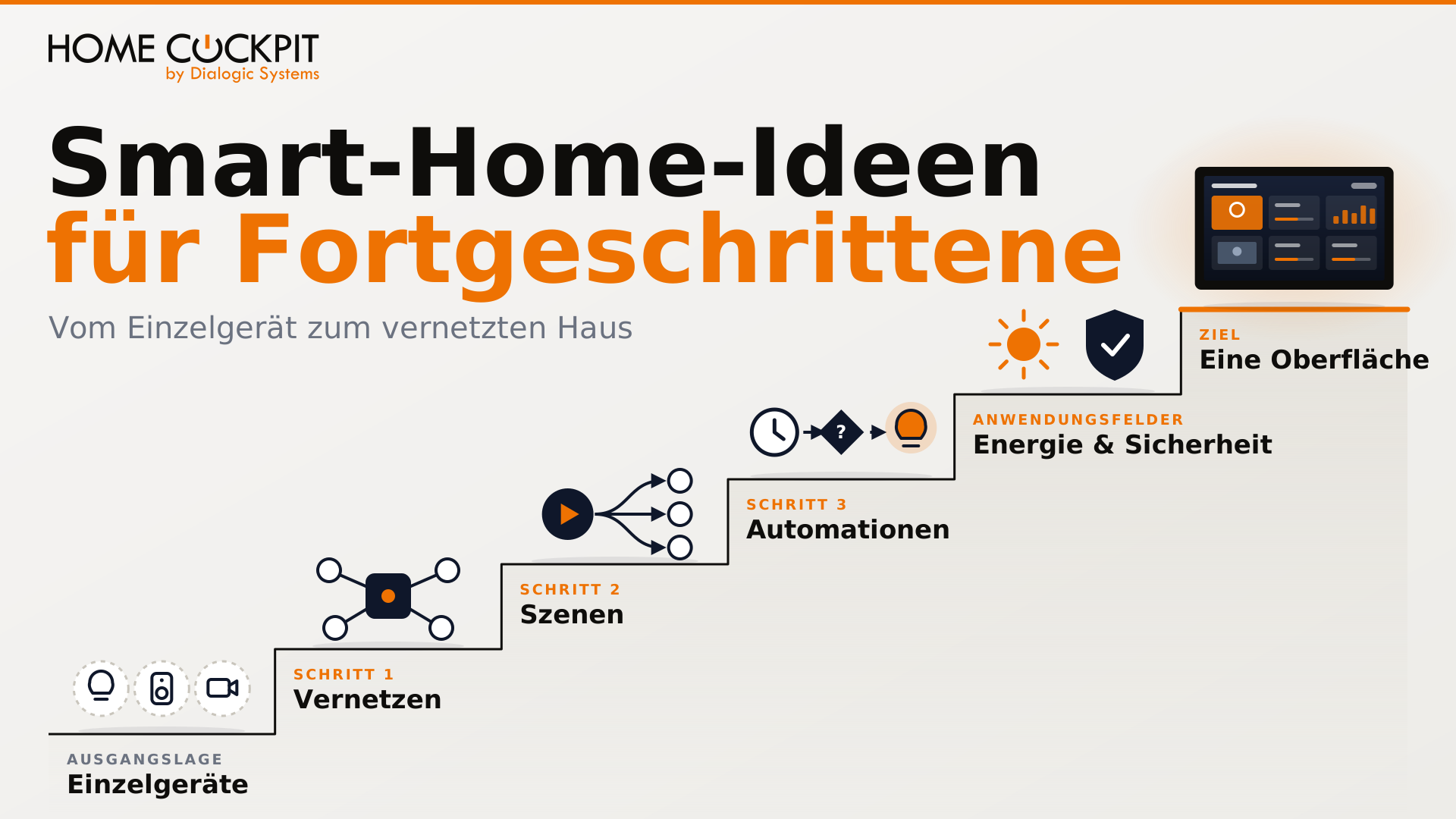
Advanced smart home ideas: from single device to connected home
You control the lights in the Hue app, the music in the Sonos app, the camera in a third app, and a fourth one shows the yield of your PV system. Every system works on its own, but none of them work together. If you want to watch a movie in the evening, you find yourself tapping through multiple apps until the lighting and music are just right.
Individual smart devices are just the beginning. A smart home truly becomes powerful when the systems talk to one another. That's when a single command controls multiple devices, and the house responds without anyone having to press a button.
This article collects smart home ideas for everyone who already has the basics up and running. It shows you the order in which to expand your smart home and what to start with at each step.
Where do you stand? Taking stock before exploring new smart home ideas
Before buying anything new, it's worth taking a look at what's already there. Most smart homes grow device by device, and every manufacturer brings their own app and often their own wireless network. In forums, this is called the "golden cage." Within one manufacturer everything works, but across boundaries nothing does.
Answer three questions for each system:
- How is it operated? Dedicated app, voice assistant, wall switch?
- How is it connected? Via a wireless bridge (like Zigbee for Hue), directly via Wi-Fi, or via cable like KNX?
- Does it run locally or via the cloud? Does it still work if the internet goes down?
The answers reveal how many isolated islands you have and which ones will be easy to connect later. Devices that can be addressed directly within the home network, without taking a detour through a manufacturer's server, are almost always the better foundation than pure cloud devices. What parts make up a smart home in the first place is explained in our article on smart home components.
Step 1: Connecting the islands
For Hue, Sonos, and the rest to work together, you need a central hub that knows all the systems. It communicates with each system in its own language and decides what happens when. The manufacturers' bridges can stay in place, continuing to translate between their wireless network and your home network.
A popular choice for this is Home Assistant, a free software that connects an exceptionally large number of systems. It integrates the Hue Bridge, adds Sonos speakers, and also speaks KNX, Matter, and Zigbee—the latter via a USB radio stick plugged into the server. Additionally, there is MQTT and Modbus, two protocols through which many sensors, inverters, and heat pumps deliver their data. Anything that cannot be directly connected this way can often still be linked via Node-RED, a tool where you assemble workflows as diagrams.
Where this hub runs is important. It must be accessible around the clock, because every scene and every automation depends on it. A laptop that gets closed in the evening is not sufficient. It is best housed on a small computer in the utility room, such as a mini-PC that runs continuously and has only this task.
What happens if the central hub fails?
You should clarify this question before bringing everything together. After all, a central hub is also a single point of failure for many things. With the right setup, the most important functions will work even without it.
- Keep the manufacturer bridge. The Hue Bridge sets up its own Zigbee network and, according to Philips, connects every Hue bulb, switch, and sensor. Home Assistant communicates locally with the bridge, but the lamps remain connected to it. If the server fails, Hue switches and the Hue app continue to operate as before.
- Pair directly where the lamps are connected to the server. Anyone operating Zigbee devices directly via a radio stick on the server can firmly bind switches and lamps together. According to the Home Assistant documentation, commands between devices paired in this way bypass the server, even when Home Assistant is not currently running. Whether a device supports this can be seen in the manufacturer documentation or device databases like the one from Zigbee2MQTT.
- KNX runs without a central unit. With KNX, push buttons and actuators communicate directly with one another. A server is only added for logic and links to other systems. If it fails, the lights and shutters will still work via the push button.
The central unit connects and automates; the basic functions do not depend on it. A light switch must always work, no matter what the server is currently doing.
Step 2: Scenes across multiple systems
A scene combines multiple commands into one. You may already know this within a single system, such as a lighting scene in the Hue app. With a central unit, this works across different manufacturer boundaries.
A typical example is "Watching TV" in the living room: the lights dim, the television turns up, the heating goes up a notch. Other scenes that have proven useful in everyday life:
Scene | What happens |
|---|---|
Good morning | Roller shutters go up, bathroom light turns on, kitchen radio starts |
Leave home | All lights off, music off, heating set to setback mode, cameras active |
Dining | Dining table light warm, other rooms dimmed, quiet music in the living area |
Good night | Lights off except for orientation lighting, shutters closed, notification if a window or door is open |
You create the scene itself in the central unit—for example, in Home Assistant or on the server of your control system, such as a KNX server. A push button, app, or touch panel merely triggers it, for example via a button that references the scene. This way, "Watching TV" works the same everywhere, no matter where you start it from.
Start with a single scene that you need every day. Ten scenes that nobody uses are less useful than one that runs every evening.
Step 3: Automations that run without pressing a button
With a scene, you still press a button. With automation, the house reacts on its own. Every automation follows the same pattern: An trigger occurs, a condition is checked, and then the action follows.
Five smart home ideas for automations that have proven useful in everyday life:
- Night light. A motion detector recognizes when someone comes out of the bedroom at night and slightly dims the path to the bathroom. No one has to search for a switch in the dark.
- Garage. Your smartphone reports that you are on your way home by car and approaching the house. The garage door then opens without you having to press a switch. You can use the time and calendar settings to ensure that the door does not open at unusual times.
- Warnings. If the temperature in a room rises to 25 °C even though the heating is set to 21 °C, something is wrong, such as a stuck valve. The house then sends a notification. The same applies to the oil tank: a notification at 30 percent, and a clear alarm at 10 percent.
- Shading. If the sun beats down heavily on the south side in summer, the roller shutters there lower a little before the rooms heat up.
- Heating. If a window is open, the heating valve in that room closes until the window is closed again.
None of these examples require a screen.
With steps 1 to 3, the technology is in place. It becomes particularly useful in two application areas that are pending in many homes anyway: energy and security. The order of the two does not matter, but both require your systems to be connected.
Application area: Energy – using electricity when it is available
With a PV system on the roof, it makes sense to use the excess PV power, i.e., the electricity that the house doesn't currently need itself. The washing machine and dishwasher then run during the day instead of in the evening, provided they can be started remotely or via the central hub. An electric car that is parked in the garage during the day anyway charges with solar power at midday instead of drawing from the grid in the evening right after you get home.
With a dynamic electricity tariff, the same principle works with price instead of the sun. The tariff follows the exchange electricity price and changes throughout the course of the day. Only the portion for the electricity itself fluctuates; grid fees and taxes remain the same. A prerequisite is a smart meter, i.e., a digital electricity meter with a communication module. The central hub can then schedule major consumers during the cheaper hours.
In addition to control, monitoring matters. You can see how much the PV system is currently generating, how much the house is consuming, and where the electricity is flowing. Anyone who has these values in front of them every day is more likely to save. How predictive control with weather forecasts and electricity prices looks in practice is shown in our article on PV charging management with Home Assistant.
Security Application Area: Camera and doorbell as part of the house
Security technology is often left out when planning a smart home. Yet networking brings immense benefits precisely here. Only when the camera is connected to the rest of the house does it trigger actions instead of just showing an image in its app.
When the doorbell rings, the image from the door camera appears wherever you happen to be, rather than first in an app on your smartphone. If an outdoor camera detects movement at night, it switches on the outdoor lighting. And with the "Leave Home" scene, cameras and the alarm system become active without you having to think about it.
You should separate viewing and recording. Show the image where you need it. Recording is handled by a recorder or a NAS (Network Attached Storage) running around the clock. This way, recording does not depend on a touch panel or tablet.
On a HomeCockpit touch panel, this display is handled by the HC-Camviewer. It displays images from external IP cameras, even multiple ones simultaneously. Together with the videophone module, which establishes the voice connection to a SIP-compatible door intercom, this creates complete door communication. It rings, the touch panel shows the door camera, you talk to the visitor and open the door. How many camera images a touch panel can display smoothly is described in our article Displaying surveillance cameras on the touch panel.
One interface for the whole house
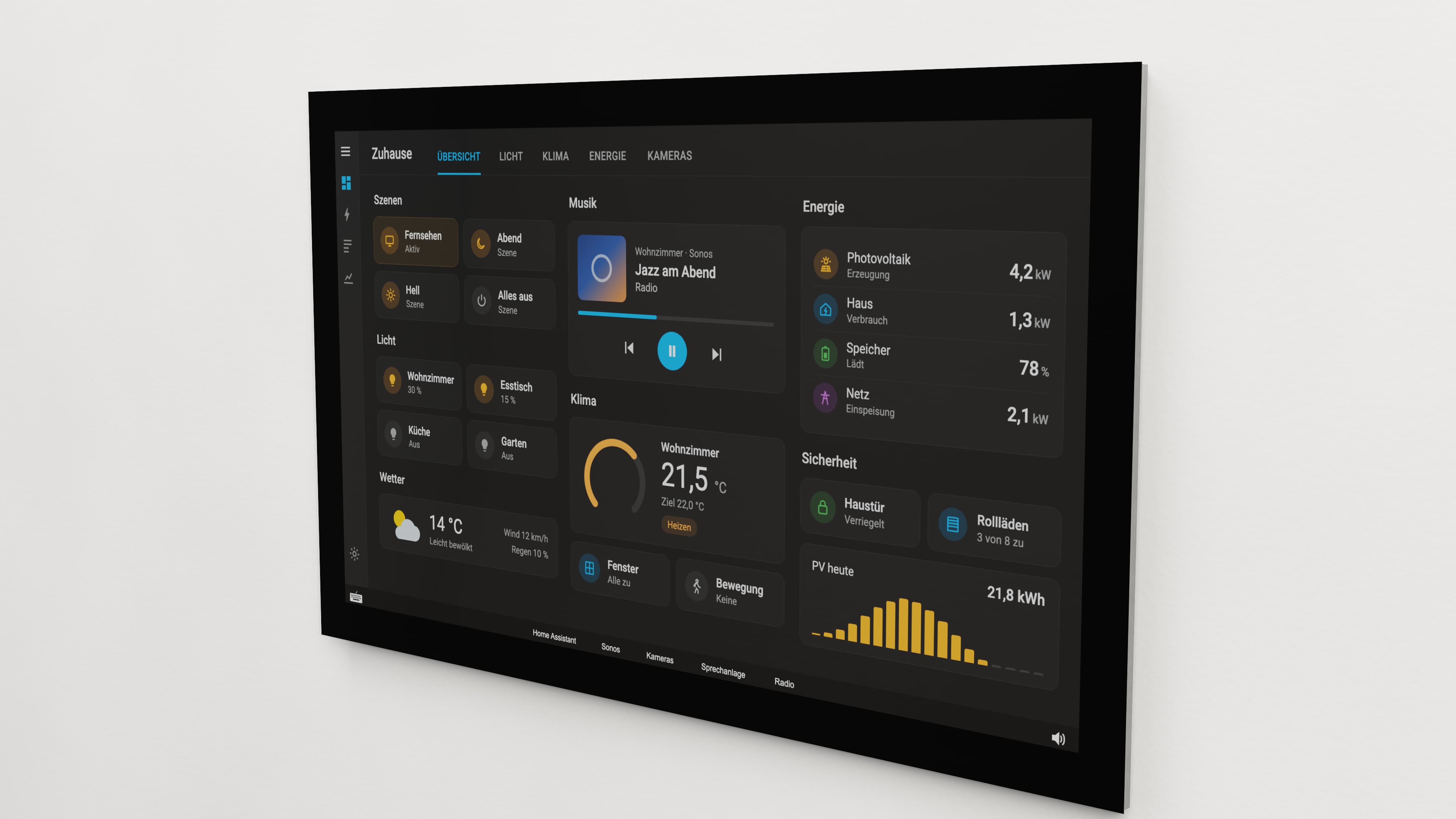
Once your systems are connected, one question remains: Where do you operate it all? A common interface is already provided by the central unit. The Home Assistant app shows lighting, music, heating, and cameras on a single page. After that, the manufacturers' apps are primarily needed for setting up new devices, and for some tasks they remain the better choice, such as the camera app for checking the property while on the go. The question is therefore less which app to use, but rather on which device. The smartphone is personal, stays in your pocket, and first needs to be unlocked. When you are out and about, for example to take a quick look at the camera, that is exactly right. Inside the house, however, what matters is that the controls are available in a fixed location and work the same for everyone.
A permanently installed touch panel on the wall is that fixed location. You set up the interface once, the buttons look the same everywhere, and everyone in the house knows where to find the lights, heating, or music. When the doorbell rings, the touch panel turns on and displays the door camera, without unlocking and without searching. A tablet, on the other hand, might be lying in another room.
In everyday life, residents mainly look at the touch panel for the yield of the PV system, power consumption, outside temperature trends, and the cameras. Added to this are the intercom system and music or radio. Much else runs via automation and is rarely operated manually. That is why the interface comes last. It is only worthwhile when there is comprehensive information to view and control.
The touch panel displays, the central unit controls
For planning, we recommend using the touch panel as a display rather than a server. The central unit with scenes and automations remains on the server in the technical room. A touch panel that receives updates and restarts is not a good place for automations that need to run around the clock.
HomeCockpit touch panels are Windows computers and are not tied to any building automation manufacturer. Via HC Navigation, you bring the interfaces of your systems to the touch panel as web apps, such as Home Assistant with your Hue scenes or the Sonos control, and switch between them with a single tap. Learn more on the page about HC Navigation.
When a touch panel is worthwhile
Not every house needs one. Those who live alone or as a couple and do everything via smartphone anyway often get along well without one. A touch panel on the wall is particularly worthwhile if several of the following apply:
Situation | Why a touch panel helps |
|---|---|
Video at the front door | The image appears immediately in a fixed location, without unlocking |
Multiple floors | One touch panel per floor, house communication from floor to floor |
Multiple residents, guests, or staff | Shared control that is not tied to a personal smartphone |
Elderly residents | No searching for the phone, large areas, always in the same place |
PV system and energy management | Energy flow and consumption at a glance |
Larger house with many systems | The entire building on one page, such as a floor plan |
If the controls should work the same for everyone in the house, including guests and staff, a touch panel is the obvious choice. Set up the interface to show what you use daily, not everything that is technically possible.
Which smart home idea is your next step?
The table shows your current status and the action to take next.
How to recognize your current status | Your next step | Where to start |
|---|---|---|
Each system has its own app, nothing is connected | Step 1: Connect islands | Check inventory, plan a small server for the central hub, integrate the first bridge (e.g., Hue) |
Everything is in one central hub, but you still switch device by device | Step 2: Scenes | Create a scene for a daily situation, such as "Watching TV" or "Leaving the house" |
Scenes are running, but you trigger everything manually | Step 3: Automations | Build an automation with a clear trigger, such as the night light or the heating shutting off when a window is open |
Automations are running, PV system or electric car available | Energy application area | Couple a large consumer to the PV surplus |
Camera and doorbell still have their own apps | Security application area | Link doorbell with camera view, store recordings on a recorder or NAS |
Much of it runs across systems, but operation is spread across many apps | A single interface | Define what you want to see daily and choose a fixed location for it |
You don't have to implement every step yourself. Many people prefer to leave the control center and security technology to a professional partner.
Conclusion
For most smart home ideas, you don't need a new device. You need a connection between the ones that are already there. First, connect your islands via a control center that runs 24/7 and make sure the basic functions work even without it. After that come scenes, automations, energy, and security, and right at the end the question of where you operate all of this.
Frequently asked questions about smart home ideas
Which smart home app can I use for everything? There is no single app that controls every system without additional software. A common approach is a hub like Home Assistant, which connects the individual systems and provides a common interface. You can still keep the manufacturer apps, for example for setting up new devices.
Can I control Hue and Sonos together? Yes, via a control center. Home Assistant integrates both the Hue Bridge and Sonos speakers. Afterwards, you can create scenes where lights and music switch together, for example when coming home or for a movie night.
Do I need Home Assistant for a networked smart home? No, Home Assistant is a common option, but not the only one. What matters is a hub that supports your existing systems and runs 24/7. This can also be the server of your control system, such as a KNX server.
What happens to the lights if the control center fails? This depends on the setup. If the lamps remain connected to the manufacturer's bridge, such as with Hue, switches and the app continue to work. For Zigbee devices connected directly to the server, hard-wired switches help, and with KNX, push-buttons and actuators communicate directly with each other anyway.
Which automations make sense in a smart home? Automations that save you from performing a daily chore or something you often forget are useful. Examples include a night light triggered by a motion detector, heating that turns off when a window is open, or a networked washing machine that starts when the photovoltaic system generates enough power.
Configure touch panel or get advice
Would you like to control your connected home from a fixed location? Put together your HomeCockpit touch panel in the configurator: Configure touch panel
Or give us a call, we are happy to advise you: +49 8095 / 873 373-0