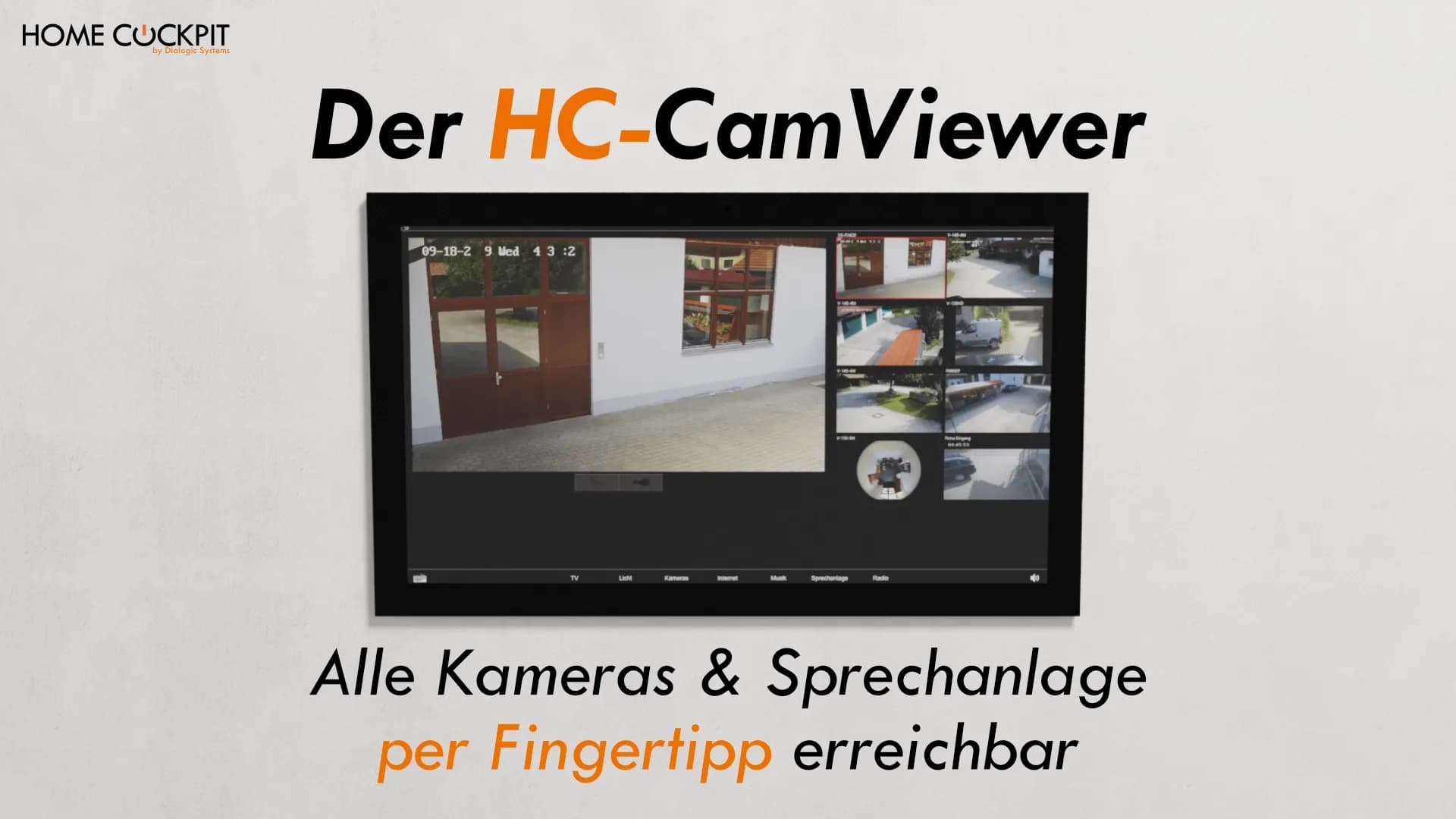
Display surveillance cameras on the touch panel: multiple camera streams simultaneously and without stuttering
Anyone planning a touch panel for building automation first thinks of lighting, heating, and shading. Security technology usually comes second. Yet it is one of the strongest reasons to choose a permanently installed panel with a generous display area in the first place.
The typical wish: see at a glance what is happening around the house or who is at the door, without having to search for the smartphone and open the right app first. Display surveillance cameras on the touch panel sounds simple, but in practice regularly fails due to the hardware. We show what matters and how the HC-Camviewer integrates any external IP cameras.
Why many touch panels and tablets reach their limits with camera streams
A live camera image is not a still picture. The stream is continuously decoded and displayed on the screen. A single Full HD camera is still manageable for most devices. However, as soon as several cameras are to run simultaneously, the load multiplies.
Affordable panels and tablets with weak processors and low RAM reach their exact limit here. In practice, this means: only one camera can be displayed smoothly. Anyone who wants to see multiple cameras has to swipe from image to image. A true overall overview of several areas is therefore not possible.
In the KNX environment, this is a well-known problem: forums are full of reports about panels becoming sluggish with multiple live cameras. The cause is almost always hardware that is too weak, not the software.
Multiple camera streams simultaneously: What matters with the hardware
The number of cameras that can be displayed smoothly depends directly on the processor and RAM. This is where it pays off that HomeCockpit panels rely on real PC hardware running Windows 11 rather than a restricted, weak chip.
The appropriate performance level depends on how many cameras are to run in parallel:
Major | Excelsior | ExcelsiorPLUS | |
|---|---|---|---|
CPU | Intel Celeron J6412 | Intel Core i5-1135G7 | Intel Core i5-1135G7 |
RAM | 8 GB | 16 GB | 32 GB |
Storage | 240 GB | 480 GB | 1 TB |
For one or two cameras, the Major is usually sufficient. Anyone wanting multiple Full HD streams side by side as an overview is best advised with Excelsior or ExcelsiorPLUS is the right choice. The i5 processor and 16 or 32 GB of RAM decode multiple streams in parallel without affecting the operation of the rest of the home automation system. You can configure the right version directly in the touch panel configurator.
Displaying IP security cameras on the touch panel: How the HC-Camviewer works
The HC-Camviewer is our in-house software that displays any external IP security cameras on the touch panel via the network. It is part of the HC Base Module and runs on all HomeCockpit panels.
During operation, the HC-Camviewer displays multiple camera streams simultaneously in a touch-optimized interface. This means the camera image is on the same panel used for lighting, shading, and heating anyway. A separate monitor for camera monitoring is no longer required.
Detailed setup instructions can be found in the HC-Camviewer documentation.
Many cameras at a glance: Substream and Mainstream
In addition to panel performance, the resolution of the streams is decisive. The HC-Camviewer uses two image qualities per camera for this: a high-resolution mainstream and a small, resource-saving substream.
In practice, this means: If the panel continuously requests high-resolution images, around 10 to 12 streams simultaneously are possible on a fast device. For a tiled overview with many cameras, the Camviewer uses the small substreams instead. This allows up to 36 cameras to be displayed in a tile view without overloading the panel. If you tap on a tile, the Camviewer automatically switches to the high-resolution mainstream for this image and displays it in a large format.
Two modes are available for the arrangement: one large image with several small ones next to it, which you can switch between, or a uniform tile view where tapping enlarges the respective image and tapping again switches it back.
Which cameras work: ONVIF and RTSP
The HC-Camviewer integrates cameras via open standard protocols. Two terms keep coming up in this context:
- RTSP is the protocol that a camera uses to provide its live video stream on the network.
- ONVIF is the cross-manufacturer standard that allows cameras from various brands to be addressed and integrated.
Almost every professional IP surveillance camera supports these standards, including models from Hikvision, Reolink, Axis, or Mobotix. This fits HomeCockpit's core principle: bringing together what is already there or will be acquired, independent of manufacturers and without vendor lock-in.
Specifically, this means that an existing camera installation can in most cases continue to be used and does not need to be replaced for the touch panel.
Setting up cameras: automatically via ONVIF or manually
ONVIF shows its true strength during setup. If ONVIF is enabled on the cameras, you do not need to worry about the individual stream address or the IP address of each camera. A username and password are sufficient, and the HC-Camviewer will automatically find all ONVIF cameras in the network. Afterwards, you simply assign descriptive names such as "Front Door" or "Driveway". ONVIF handles the connection negotiation, while the actual video transport typically runs via RTSP.
Cameras without ONVIF can still be integrated manually. There are two ways to do this: enter the stream directly or work with a template. Templates have the advantage that a change to the stream automatically applies to all cameras using that template. This saves time in larger installations.
Display or Record? Where the Touch Panel Ends and the Recorder Begins
An honest assessment is important: The touch panel is the display and control unit, not the archive. Its strengths lie in the live image and quick access. A snapshot can be triggered, for example, when someone rings the doorbell.
Permanent recording and looking back into the past—meaning the question "who was at the house and when"—belong on a dedicated recording system or a small server, such as a solution like Milestone. This has two advantages: the panel remains free and responsive for operation, and recordings continue to run independently even if the panel restarts for an update.
The touch panel shows what is happening right now. The recording system captures what has happened.
The recording system is not just an archive: the HC-Camviewer can either obtain the streams directly from the cameras or use the recording system as a source. This is particularly useful when there are multiple panels. A single camera only provides a limited number of parallel streams. If many panels need to access the same image simultaneously—such as when a doorbell call displays the door camera throughout the house—a recorder or NVR distributes the streams more reliably than the camera itself.
Locally linked with KNX instead of cloud services
RTSP and ONVIF cameras are integrated locally into your own network. No cloud account or external service is required to view the images on the panel. This is a clear advantage for data protection: recordings from your own property never leave your network.
Because the panel runs on Windows and is integrated into the KNX environment, cameras and building automation can also be linked. A camera that detects movement in the driveway can switch on the outdoor lighting via KNX. And anyone ringing the doorbell automatically appears as an image on the panel, more on that in the next section. This is how camera imagery and home control intertwine.
Doorbell and intercom system on the touch panel
A common application goes beyond simply viewing video streams: the HC-Camviewer also serves as the interface for the intercom system. If someone rings the bell, the panel automatically wakes up from standby and displays the image of the corresponding door camera. A green button answers the call, and a second one opens the door. You immediately see who is at the door without having to open the desired view first.
To enable voice communication, the HC-VideophoneModule (SIP) comes into play. The access credentials for the intercom or telephone system are stored there. In addition to classic door systems, a FritzBox can also serve as the exchange. In the Camviewer, you then simply define which camera should appear for each specific door call. For example, if the door station at the main entrance calls, precisely that camera image pops up.
The process can be customized to your preferences: the door opener can either become available only after answering or be ready from the outset. Furthermore, the call can automatically end after the door is opened or remain active.
Availability: Part of the HC-BaseModule
The HC-Camviewer is included in the HC-BaseModule included (item no. SWBASV3, €245 net). As this is software, it is available on all HomeCockpit panels and in all sizes. The module can be ordered together with the panel or installed later via the central installer.
If you want to not only view the camera, but also speak and open the door, combine the HC-Camviewer with the HC video phone module (SIP). However, this is not required for camera viewing alone.
Conclusion
Displaying external surveillance cameras on the touch panel is no rocket science as long as the hardware supports it. Using the open ONVIF and RTSP standards, the HC-Camviewer integrates almost any professional IP camera, independent of the manufacturer and locally without a cloud. The performance level determines whether multiple streams run smoothly at the same time: Excelsior and ExcelsiorPLUS are the right choice for multi-camera overviews. Recording remains with the dedicated recorder, while the panel delivers the live image to wherever it is needed in everyday life.
Configure your touch panel with camera display or get advice
Would you like to see your surveillance cameras centrally on the touch panel and don't know which performance level suits your number of cameras?
Configure your touch panel directly online or give us a call: We will advise you on which panel suits your situation.
Frequently asked questions about surveillance cameras on the touch panel
Which surveillance cameras can I display on the HomeCockpit touch panel? All IP cameras that support the open ONVIF or RTSP standards. This applies to almost all professional models, such as those from Hikvision, Reolink, Axis or Mobotix. Integration is independent of the manufacturer, and an existing camera installation can in most cases continue to be used.
How many cameras can I display at the same time? This depends on the performance level of the panel and the resolution of the streams. The Major is sufficient for one or two cameras. Excelsior (Intel i5, 16 GB RAM) or ExcelsiorPLUS (32 GB RAM) are designed for several Full HD streams side by side. On a fast device, around 10 to 12 high-resolution streams are possible simultaneously. Up to 36 cameras can be displayed in a tile overview using smaller substreams; when a tile is tapped, the Camviewer automatically switches to the high-resolution image.
Does the camera connection work without a cloud? Yes. RTSP and ONVIF cameras are integrated locally in your own network. A cloud account or external service is not required; the recordings do not leave your own network.
What is the difference between ONVIF and RTSP? RTSP is the protocol via which a camera provides its live video stream. ONVIF is the cross-manufacturer standard that allows cameras from various brands to be addressed uniformly. Both are relevant for integration into the touch panel.
Is the HC-Camviewer the same as the camera component? No. The HC-Camviewer is software for displaying external cameras. The camera component is a built-in camera permanently installed in the panel for video telephony. The Camviewer pulls in images from external cameras, whereas the camera component itself records an image.
Do I need a separate recorder for recording? Not for pure live viewing. For continuous recording and looking back at the past, a dedicated recording system or a small server is recommended. This keeps the panel responsive and ensures recordings continue independently of the panel.
How are cameras set up in the HC-Camviewer? Most easily via ONVIF: If ONVIF is enabled on the cameras, a username and password are sufficient, and the Camviewer automatically finds all cameras in the network. Afterwards, you simply assign descriptive names. Cameras without ONVIF can be integrated manually, either with a direct stream address or via a template whose changes apply to all assigned cameras.
Can I display the doorbell on the touch panel? Yes. The HC-Camviewer also serves as the frontend for the door intercom system. If someone rings the doorbell, the panel automatically turns on and displays the door camera, complete with a button to answer and open the door. The HC-VideophoneModul (SIP) is additionally used for the voice connection, and a Fritzbox can also be used as the switching center.